How to remove a person from a photo without learning Photoshop
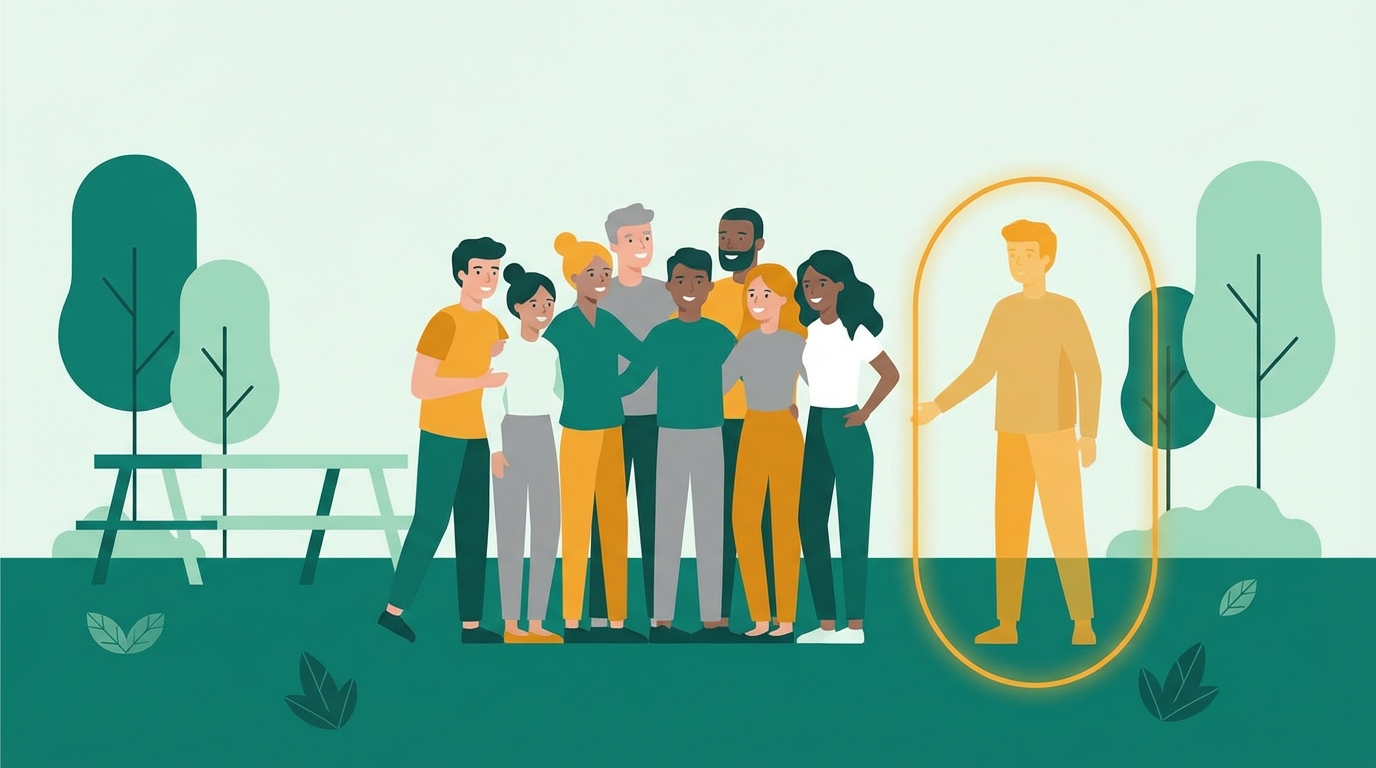
If your photo is good except for one extra person, BOARD is built for that exact situation. The fastest workflow is not "paint a mask." It is "select the person, run removal, review the result."
Four steps
Start with the original photo if you still have it, not a compressed repost or cropped screenshot.
This is where BOARD differs from brush tools. You do not begin by painting over the person manually.
Choose the tourist, photobomber, ex, or bystander that is pulling attention away from the photo.
Use compare view to judge the actual difference. If the first pass is close, another pass is often the right next move.
Photos that usually work well
- A single distracting person in a travel or event shot.
- A bystander standing against a relatively clean background.
- Real estate or product photos where one person is the main distraction.
Photos that are harder
- Dense crowds where people overlap heavily.
- Subjects blocking complex repeating textures like fences or patterned wallpaper.
- Tiny people far in the distance with very little detail.
Why BOARD instead of Photoshop for this job
Photoshop can remove a person from a photo, but it asks casual users to think like an editor: which selection tool, how to refine edges, which fill workflow to trust, how to clean up artifacts afterward. BOARD starts from the simpler question: which person are you trying to remove?
Good default rule: If the photo is already worth keeping and there is just one person ruining it, test that image in BOARD before you open a heavier editor.
Consent and when removal is the wrong call
A photo editor is a tool. The question of whether to remove someone is a separate one, and it is worth thinking through before you tap.
For personal use, removing a person from your own photo is uncontroversial. Photos in your camera roll, prints for an album, a holiday card you mail to family. Nobody besides you sees the source and the edit, and the photo is yours.
Outside personal use, three contexts ask for more care:
- Public publishing. Posting an edited group photo on social media changes the social record. If you remove a former partner from a friend group photo and post the result, that publication has its own social cost. Worth thinking about even when it is legal.
- Journalism and documentary. Altering a news photo to remove a person is generally considered manipulation and against editorial standards. The photo's value is its accuracy.
- Legal and evidentiary use. Editing a photo that may be used in court, insurance, or police investigation is evidence tampering and a crime in most jurisdictions.
If the photo is yours, the use is personal or commercial-but-non-deceptive (a real estate listing where a tenant's car is in the driveway, an Airbnb photo where a previous guest is in the room), and you are not misrepresenting anything to a buyer or court, you are fine. Tap and go.
When BOARD is not the right tool
BOARD handles the 80% case well. Here are the cases where another tool wins:
- The person you want to remove is heavily overlapped with other people. If hands, hair, or shoulders intersect across multiple subjects, automatic mask refinement can struggle. Photoshop's manual selection (or Generative Fill with a careful selection) gives more control.
- The background is a complex repeating pattern. Brick walls, fence slats, tile floors, gravel. Modern inpainting handles them better than 5 years ago, but you may see a faint seam. A skilled Photoshop user with the clone stamp will outperform any AI on this.
- The photo is a very high-resolution print master. brd processes at typical screen resolutions. For billboard or magazine-print masters, work in Photoshop at full RAW resolution.
- You want to ADD content (a new person, an object that was not there). brd's Edit changes existing objects; it does not generate brand-new ones from a text prompt. Photoshop's Generative Fill does this.
- The photo is video. brd is image-only. For video person-removal, use Runway, DaVinci Resolve, or a dedicated tracking-and-blur workflow.
Frequently asked
Can BOARD remove multiple people from one photo?
Yes. After removing one person, select the next and run removal again. Each removal uses one credit.
Does it work on group photos?
BOARD works best when the person you are removing is not heavily overlapping with others. Single bystanders, photobombers, and edge-of-frame people produce the cleanest results.
How is this different from Photoshop content-aware fill?
Photoshop requires you to manually select the person using lasso or pen tools, then run content-aware fill. BOARD detects people automatically. You click the person, and the AI handles the rest.
Is it okay to remove someone from a photo without their permission?
For personal use (a photo on your phone, a print at home, a memory you want to keep), yes. For any context where the photo will be published or used in a way that affects the removed person (journalism, business advertising, a court submission, a public social post), think about consent. Removing an estranged family member from your own private wedding photo is fine. Editing them out of a published news image is not.
Keep reading
Ready to try it on your own photo?
Start with the image that made you search for this guide. Five edits free, no signup.
Clean Up a Photo Free →