Google Magic Eraser not working? Fixes and the best alternatives
Magic Eraser is supposed to be one button. When it does not show up, errors out, or refuses to process your photo, the experience drops off a cliff. This guide covers the five fixes that resolve most cases, the hardware and subscription limits Google does not advertise, and the cross-platform alternatives that work when Magic Eraser will not.
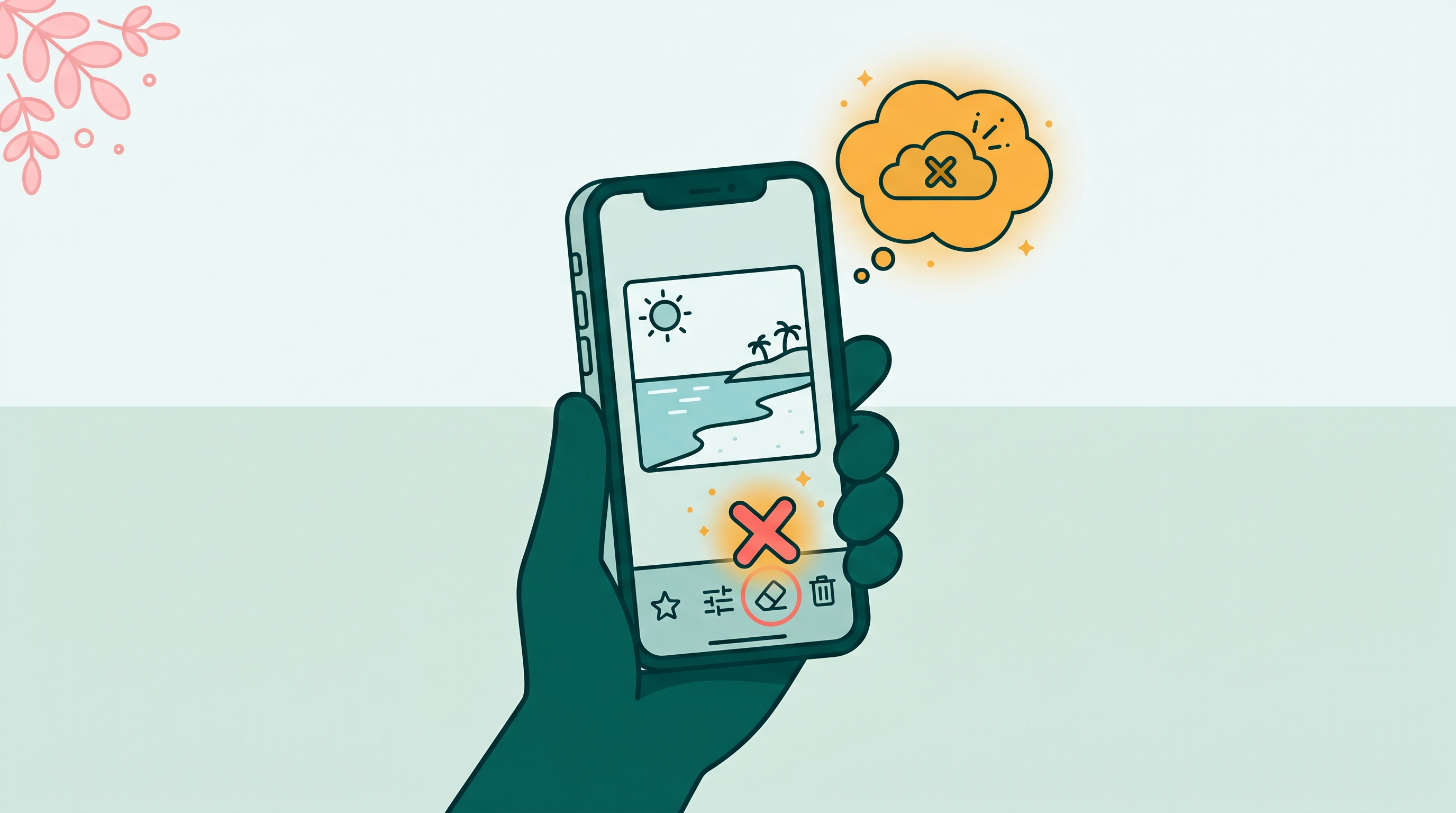
The most common reason it is not working
You opened a photo in Google Photos and the eraser icon is missing, greyed out, or pops a "try again later" toast. Nine times out of ten, the cause is one of these five:
- You are on a non-Pixel phone without a Google One subscription. Magic Eraser is only free on Pixel 6 and later. On iPhones and other Android phones, it sits behind a Google One paywall.
- Google Photos is out of date. The eraser was reorganized inside the editor twice in the last year. An old app version may still show the original toolbar.
- You are signed into the wrong Google account. Magic Eraser tied to a personal account does not always appear when you switch to a work account in Photos.
- The photo is too large. Files over about 25 megapixels or 20MB sometimes refuse to process, especially over cellular.
- You picked a photo that is not in your main library. Magic Eraser does not run on screenshots in some setups, or on photos that have not synced to Google's servers yet.
The five fixes worth trying in order
Open the Play Store (Android) or App Store (iPhone), search Google Photos, and tap Update if it is offered. Force-close the app fully and reopen it. About 30% of "Magic Eraser disappeared" reports trace back to an outdated app build.
Open Photos, tap your profile picture, scroll to your Google One plan. If you are on a non-Pixel phone and the row says "Not a member," Magic Eraser will not appear inside the editor until you start a plan or use a free alternative.
Tap your profile, switch to your primary account, reopen the same photo. Photos sometimes hides editing tools when the current account does not own the file.
If Magic Eraser fails on a specific photo, share it to yourself via Gmail at "Best for sharing" size. Open the smaller copy in Photos and run Magic Eraser on that. Large RAW conversions and HDR composites trigger most of the silent failures.
On Android: Settings, Apps, Google Photos, Storage, Clear cache. Reopen Photos. On iPhone: delete and reinstall Google Photos, then sign back in. Cache corruption is the second most common silent failure mode.
When none of the fixes work
If you went through all five and Magic Eraser still will not run, you are usually in one of two situations. Either your hardware does not qualify (anything other than a Pixel 6 or newer, without paying for Google One), or Google's Photos backend is having a quiet outage. The first is structural. The second clears in a few hours. Neither is fixable from your end.
At that point, the cleanest move is to use a cross-platform tool that does the same job. The list below is the short version of what works on every device, what each one costs, and where each falls short.
Alternatives that work when Magic Eraser does not
BOARD (brd.ing)
Browser-based. Works in Safari, Chrome, Firefox, on any phone or laptop. No app, no account for the first 5 edits, $0.50 per edit after. Same one-tap interaction as Magic Eraser.
Cleanup.pictures
Free for low-resolution downloads, paid for full resolution. Brush-based, so you paint a mask over the object instead of tapping it. Slower workflow, but no signup.
Samsung Object Eraser
Built into Samsung Galaxy phones (S22 and later). Free, no subscription. Works exactly like Magic Eraser. Only available on Samsung hardware.
Apple Clean Up
Built into Photos on iPhone 15 Pro and newer. Free, no subscription. Requires Apple Intelligence, so older iPhones get nothing.
BOARD is the option that works on the same iPhone, Android, or laptop you already own, with no install. Read the full comparison if you want the side-by-side detail.
If you want to stay inside Google's ecosystem
The free path inside Google's stack stops at Pixel 6 and newer. Two adjacent options exist:
- Buy a Google One plan ($1.99/month at the lowest tier). Magic Eraser unlocks on every device signed into that account, including iPhones.
- Trade up to a Pixel. The Pixel 9a and Pixel 9 both get Magic Eraser at no extra cost.
Both are real options. They are also more expensive than a free browser tool that does the same job in 5 seconds.
Quick path if you are stuck right now: Open brd.ing in your current browser. Upload the photo Magic Eraser refused. Tap the object. Download the result. No subscription, no app, no Google account.
Related guides
- Magic Eraser for iPhone: how it compares across Apple Clean Up, Samsung Object Eraser, and BOARD
- How to remove objects on an older iPhone with no Clean Up
- Remove objects from photos free: what "free" actually means at each tool
Frequently asked
Why is Magic Eraser not showing up in Google Photos?
The most common cause is a non-Pixel phone without a Google One subscription. Magic Eraser is free on Pixel 6 and later, but requires a Google One plan on iPhones and other Android phones. If it is missing on your Pixel, check that Google Photos is updated and you are signed into the right Google account.
Why does Magic Eraser say "try again later"?
That message means the on-device or server-side model could not process the image. It usually appears with very large photos (over 25 megapixels), corrupted files, or when Google's Photos backend is under load. Restarting the app or trying with a smaller copy of the same photo fixes it most of the time.
Is there a free alternative to Magic Eraser?
Yes. BOARD gives you 5 free edits with no account required, in any browser including mobile Safari and Chrome. Cleanup.pictures is also free for low-resolution exports. Both work cross-platform, unlike Magic Eraser, which is locked to Google Photos.
Does Magic Eraser work on iPhone?
Only through the Google Photos app and only with an active Google One subscription. The free version stays locked to Pixel hardware. Most iPhone users find a browser-based tool faster than installing Google Photos and paying for a Google One plan.
Can I use Magic Eraser without Google One?
On Pixel 6 and newer, yes, no subscription needed. On any other Android phone or any iPhone, you need a paid Google One plan to unlock it inside Google Photos.
Magic Eraser refused. BOARD will not.
Same one-tap removal, in any browser, no signup. 5 edits free.
Clean Up a Photo Free →