How to remove unwanted objects from photos
Every photo has something you wish wasn't there. A car parked exactly where it shouldn't be. A stranger who walked through the frame at the wrong second. A wire crossing an otherwise clean sky. Removing objects from photos used to require Photoshop skills. Now it takes a click. Here is how it works and when each approach makes sense.
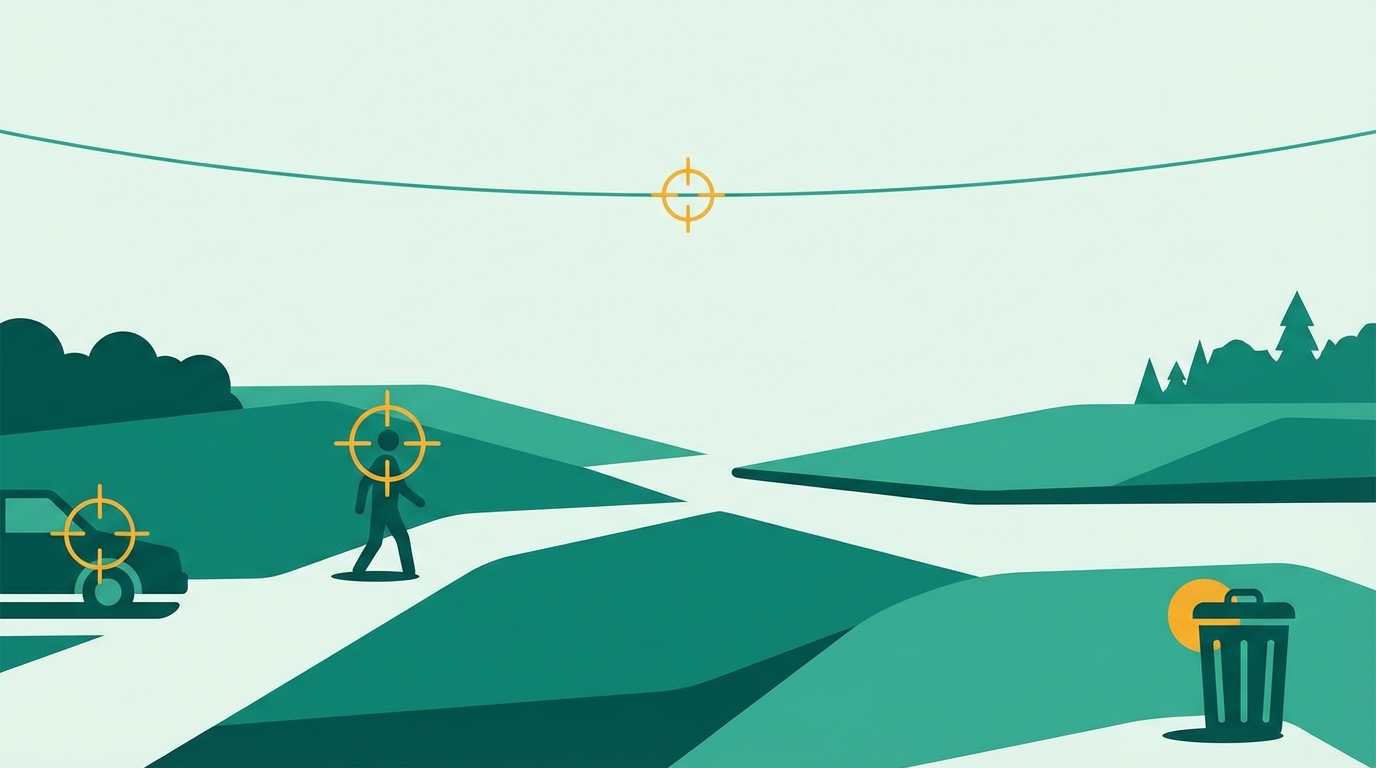
Three approaches to object removal
There is no single right way to erase an object from a photo. The best approach depends on what you are removing, how clean the result needs to be, and how much time you want to spend.
Manual editing (Photoshop)
You paint a mask over the object, run content-aware fill, and clean up artifacts by hand. The most control, the best results on hard cases, the steepest learning curve. A subscription costs $9.99/month.
Brush-based AI (Cleanup.pictures)
You brush over the object in a browser tool, and AI fills what was behind it. Faster than Photoshop for simple cases. Free for standard-resolution images. You still need to identify the area manually.
One-click AI (BOARD)
Object detection identifies everything in the scene as a clickable element. You click the object you want removed. No brushing, no selection tools, no masking. Five free removals with no account.
For most object removal jobs, start with the one-click approach. If the result needs more precision, try brush-based. If neither is sufficient and accuracy is critical, use Photoshop.
Remove unwanted objects from photos: four steps
Go to app.brd.ing in any browser. Drag your photo onto the page or click to upload. BOARD accepts JPG, PNG, and WebP. Use the original file from your camera or phone rather than a compressed repost. The higher the resolution, the cleaner the fill.
After the photo uploads, BOARD scans it and outlines every detectable object as a clickable element. Hover over the image to see what has been identified. People, vehicles, furniture, signs, animals, and structural objects (fences, wires, poles) all show up as distinct selections.
Click on the unwanted object. BOARD outlines it in color so you can confirm you have selected the right thing before running the removal. If the object you need to erase isn't detected separately from something you want to keep, select the closest match and see if the result is acceptable.
Hit remove. BOARD erases the object and fills the space behind it. The compare slider lets you check the result against the original. Most removals are clean on the first pass. If there is a visible artifact or mismatched texture, run a second pass on that specific area. Download the result at full resolution.
What you can remove from photos
Works well
- People standing at the edge of frame
- Cars and vehicles in parking lots or streets
- Signs, poles, and traffic infrastructure
- Wires and cables crossing sky or walls
- Text overlays and date stamps
- Trash, bins, and debris
- Animals (stray dogs, birds on wires)
- Furniture in indoor shots
Harder to remove
- Large objects covering most of the frame
- Objects overlapping the main subject
- Repeated patterns in the background (fences, railings)
- Objects against complex textures (foliage, brick)
- Very small or thin objects (single wires, thin poles)
- Objects in very low-resolution images
A useful test: if you can describe the object without looking at the photo ("there is a red car in the lower left") it is probably a good candidate for removal. If the object is tightly integrated with the scene structure ("there is a person holding the hand of the subject"), it is harder.
Object removal on any device
BOARD is a browser-based tool. There is no app to install. Any device with a web browser can upload a photo, remove objects, and download the result.
More specific removal guides
This is the general guide. These pages go deeper on specific removal jobs:
Frequently asked
How do you remove objects from photos for free?
BOARD gives five free object removals with no account required. Go to app.brd.ing, upload, click the object, remove. Cleanup.pictures also has a free tier with no signup for standard-resolution photos. Both run in any browser.
What is the easiest way to erase an object from a photo?
Click-to-remove tools are the easiest: BOARD detects objects automatically and you click to erase them. No brush painting, no masking. Brush-based tools like Cleanup.pictures require you to paint over the area, which is slightly more work. Photoshop gives the most control but requires the most skill.
Does object removal work on iPhone?
Yes. BOARD runs in Safari on iPhone and iPad. There is no app to install. Open app.brd.ing, upload from your photo library, remove the object, and download the result back to your camera roll. The full workflow works on mobile.
How accurate is AI object removal?
Accuracy depends on the object and what surrounds it. A car in a clear parking lot, a person against an open sky, a trash can on a lawn: these typically produce clean results on the first pass. Objects overlapping the main subject, complex textured backgrounds, and very low-resolution images are harder. For those cases, a second pass usually improves the result, and a brush-based tool or Photoshop gives you more control if needed.
Remove the object. Keep the photo.
Five removals free, no account required. Works on any device with a browser.
Clean Up a Photo Free →