How to remove a parked car from a real estate or street photo
You lined up the perfect shot of the front of the house and a neighbor's car is parked at the curb. Or the sellers left their car in the driveway and it is the first thing you see in the listing photo. Moving the car was not an option, reshooting is not worth the trip back, and Photoshop takes 20 minutes. This guide is the faster path.
Why parked cars are a common listing photo problem
Real estate photographers face this on nearly every exterior shoot. You cannot always coordinate with sellers to have all vehicles out of frame. Neighbors park where they want. Delivery trucks stop at the worst moment. And in dense urban areas, there is often a wall of parked cars along the street that makes the curb appeal photo look like a parking lot.
Beyond logistics, cars in listing photos carry specific problems. A broken-down vehicle in the driveway signals neglect. A mismatched beater parked next to an otherwise well-maintained property creates a dissonance that buyers notice without being able to articulate it. Even a perfectly fine car sitting in front of the garage is a distraction from the house itself.
The traditional fix is to clone the car out in Photoshop or Lightroom using Content-Aware Fill. On a simple background, that takes 5 to 10 minutes. On a driveway with distinct paving patterns, a shadowed area, or cars parked against a complex landscaped garden, it can take much longer and still require manual cleanup. BOARD cuts that to a single tap for most cases.
How to remove a car parked in the driveway
Go to brd.ing in any browser. Works on iPhone, Android, Mac, Windows, anywhere. No app install, no account for the first 5 edits. Upload your listing photo.
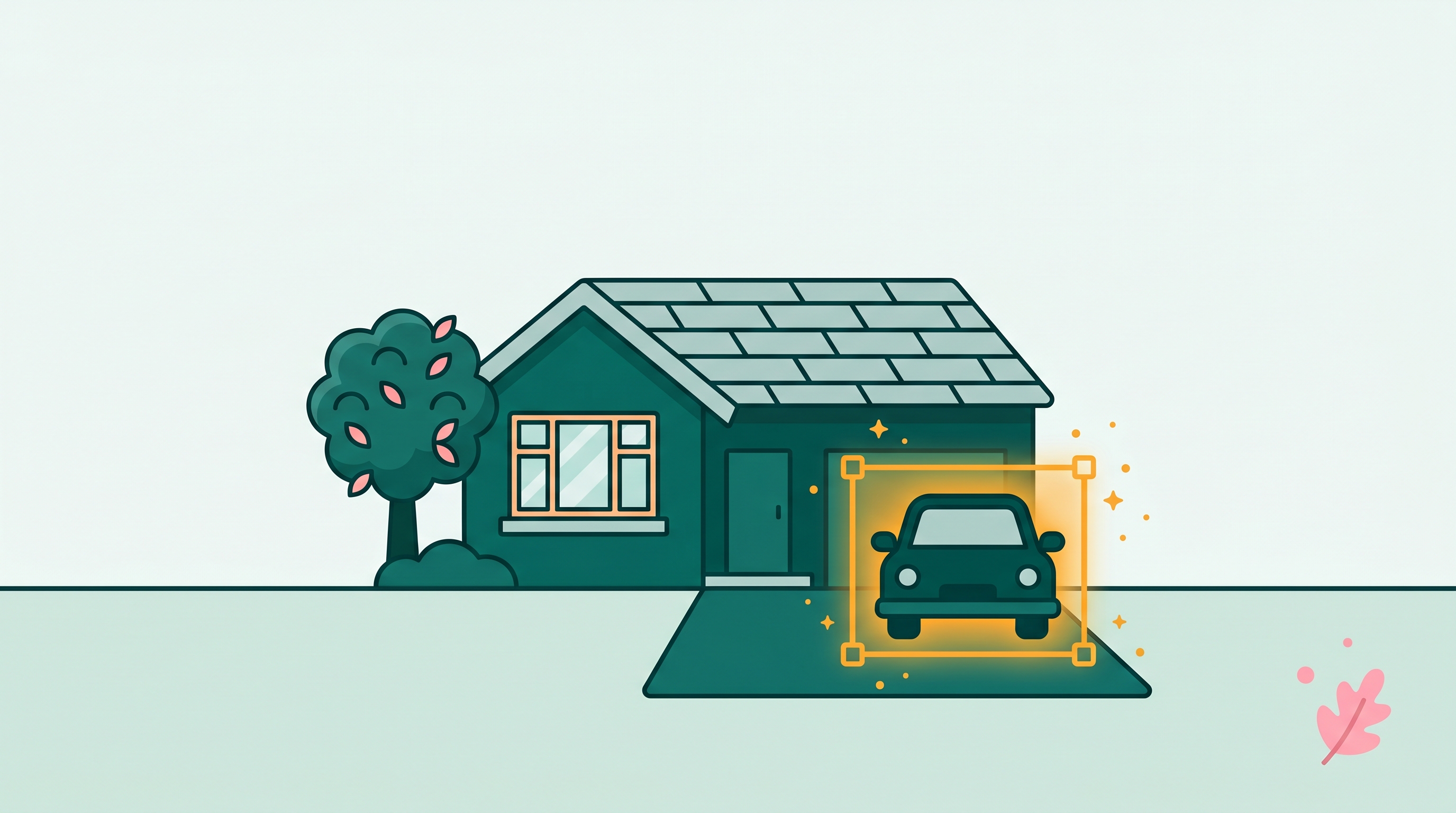
Tap on the car body in the photo. BOARD highlights it as a selected object. The selection should cover the car from bumper to bumper including the wheels and window glass. Check that it does not bleed into the driveway surface or surrounding structures.
A car parked in direct sunlight casts a shadow on the driveway. Look at the selection. If the shadow is included, the Remove will handle both car and shadow in one step. If the shadow is not selected, note its location so you can address it after the car is gone.
The car disappears and the driveway surface reconstructs behind it. BOARD infers the paving texture and color from the visible sections on either side of the car and fills the gap. Zoom in to check the result.
If the car's shadow is still visible on the driveway, tap it as a separate object and tap Remove again. The shadow reads as a distinct element and usually clears in one additional pass.
Once the driveway looks clean, tap download. The photo saves at the original resolution, ready for your listing platform.
Removing a car parked across the street
A car on the opposite side of the street is actually easier to remove than one in the driveway. The background behind it is the road surface and either a sidewalk or the property across the street, both of which tend to be simpler textures. Tap the car, tap Remove, and the road fills in cleanly.
If there are multiple cars along the curb, remove them one at a time. Start with the most prominent one in the center of the frame and work outward. For a long line of parked cars that fills the entire bottom-left or bottom-right of the frame, BOARD handles each one, though removing five or six cars in the same zone takes five or six edits. At $0.50 per edit after your free five, a full curb cleanup costs two or three dollars.
Cars partially obscured by trees or fences
A car that is partly behind a hedge, tree, or fence requires a bit of care. Tap the visible portion of the car and check the selection. If the selection includes the fence or tree that is in front of the car, use the refine step to narrow it to the car body only. You do not want to accidentally remove the fence.
Once you have a clean selection on the car portion, tap Remove. BOARD removes what is selected and leaves the fence or tree intact. For most shots, this looks correct: the fence stays, the car behind it is gone, and the background fills in for the visible portion of the gap.
The one case where this gets tricky is a car that is partially behind a tree with a lot of fine branches. The selection may not be precise enough to cleanly separate car from branch tips. A second-pass removal on any remaining artifacts usually handles it, but occasionally the branch detail near the car needs a manual touch-up.
Where the results are less clean
BOARD works well when the background behind the car is relatively uniform. Driveway concrete, asphalt road, a lawn, or a gravel surface all reconstruct cleanly. A few cases where the result may need a second pass:
Patterned brick or stone paving
Brick driveways and cobblestone paths have a regular repeating pattern. Reconstruction occasionally misaligns the pattern in the filled area. A second tap on the misaligned section usually corrects it. For very precise brickwork, a manual touch-up in Photoshop after the BOARD pass may be worth it.
Detailed garden beds behind the car
If the car is parked against a densely planted garden border with lots of leaf detail, the reconstruction has more complexity to work with. Results are usually good, but zoom in after removal to check for any smearing or repetition artifacts in the plant texture.
Cars that fill most of the frame
If the car occupies 40% or more of the image, the AI is reconstructing a lot of background from limited context. These removals work, but they take more passes to clean up. If the car is that large in the frame, the better photographic fix is to retake the shot from a wider angle or farther back.
Listing ethics: Removing a car that does not belong there (a visitor's car, a neighbor's car) to show the driveway clean is fine and standard practice. Real estate listing photos are routinely edited for lighting, color, and cleanliness. Removing cars is no different from removing a trash can or a garden hose. What is not fine is removing something structural that a buyer needs to see, like removing a permanent fence to make a lot look larger than it is.
Street photographers and urban shots
Parked car removal is not only a real estate problem. Street photographers sometimes want a cleaner foreground or background, particularly when a parked car bisects an architectural composition or blocks a building facade. The workflow is the same: tap the car, remove it, let the road or sidewalk fill in. For street photos with multiple background layers (a building visible above the car's roofline), the reconstruction looks at the exposed portions of the background to fill the rest.
Related guides
- How to remove or blur a license plate from a photo
- Magic Eraser for iPhone: every option compared
- Best photo editors for removing objects in 2026
- How to remove power lines from landscape photos
Frequently asked
Can you remove a parked car from a photo without Photoshop?
Yes. BOARD does it in one tap in any browser. Upload the photo, tap the car, tap Remove. The driveway, road surface, or lawn reconstructs behind it. No app install, no account for the first 5 edits, $0.50 per edit after that.
How do I remove a car from a real estate photo on my phone?
Open brd.ing in Safari or Chrome. Upload the listing photo. Tap the car. Check the selection covers the car body and not the surrounding driveway or garden. Tap Remove. The car disappears and the background fills in. Download the cleaned photo.
Will removing a car from a listing photo look fake?
On photos where the background behind the car is simple (a driveway, a road, a lawn), a clean removal looks natural. The AI reconstructs the surface texture based on what it sees on either side of the car. On very complex backgrounds, like detailed brick paving or an ornate garden bed, the reconstruction may show a slight inconsistency that is worth a second pass.
Does the car's shadow need to be removed separately?
BOARD often picks up the car's shadow as part of the selection, especially on a driveway in direct sunlight. Check the selection before tapping Remove. If the shadow is included, great. If the selection stops at the car body and leaves the shadow on the ground, tap the shadow separately afterward.
What if the car is partially behind a fence or tree?
Use the refine step after tapping to narrow the selection to the visible portion of the car. BOARD removes what it can see. The obscured portion stays, which is correct. For a car that is mostly hidden and you only want to remove the visible section, this works well.
Car in the driveway. Gone in one tap.
Five free removals in any browser, no account. Clean up listing photos before they go live.
Clean Up a Photo Free →