How to change hair color in a photo before you commit
Hair color is one of the higher-regret decisions in personal appearance. A salon visit to correct a bad dye job costs more than the original color. A quick AI preview doesn't replace a professional consultation, but it gets you to "yes this could work" or "no, definitely not" without booking an appointment. Here's how to do it with BOARD, and what to expect from the result.
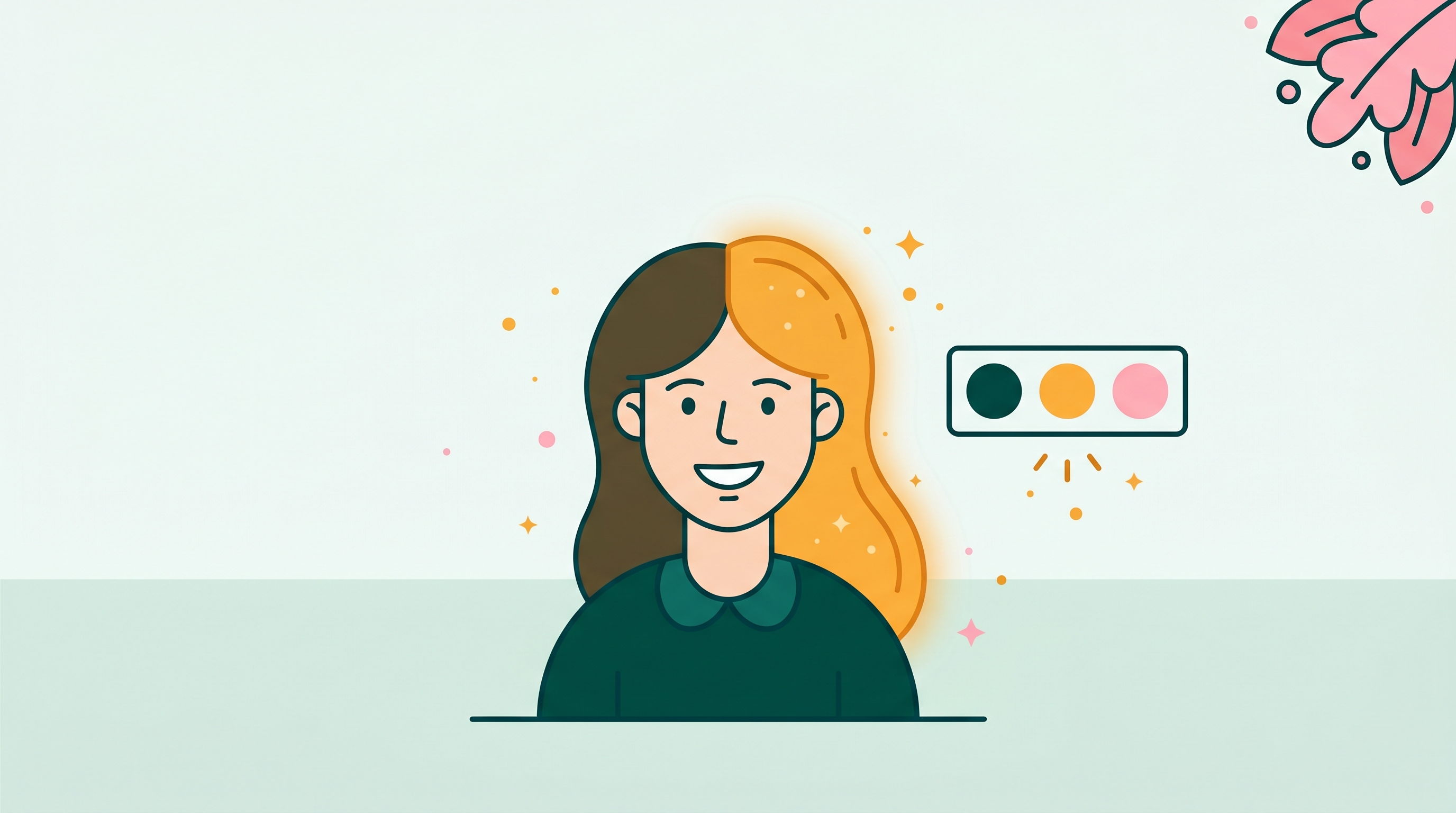
Why a preview is worth doing
Going from dark brown to platinum blonde takes multiple bleach sessions spread over weeks. Going back is expensive and damaging. A 10-second AI preview that tells you "platinum blonde doesn't suit my skin tone" saves a significant amount of time and money. The preview is not perfect, but it's accurate enough to rule out bad ideas.
The other common use case is showing a hairdresser what you have in mind. Instead of scrolling through Pinterest looking for a reference, you can show them your own face in the approximate color you want. That reduces the gap between "what you're picturing" and "what the stylist interprets."
How to change your hair color in BOARD
Choose a photo where your hair is clearly visible with reasonable contrast against the background. A portrait or selfie with a plain background works better than a group shot with a busy scene. Good lighting, clear hair edges, solid single-color hair: those are the conditions that produce the best result.
Open brd.ing in your browser (Safari, Chrome, any browser works on any phone or laptop). Upload the photo. BOARD detects objects in the scene including your hair, face, and background.
Tap anywhere on your hair in the photo. BOARD selects the hair as an object and shows a mask. Confirm it covers the hair and not the face or background. If the selection seems off, tap a different area of the hair.
Select the Edit (Alter) command and type your color. "Platinum blonde," "auburn," "jet black," "copper red," "dark chocolate brown." The more specific the name, the more accurate the result. Vague prompts ("make it lighter") produce unpredictable results.
The preview appears in a few seconds. Check how the color interacts with your skin tone and the rest of the photo. If the result looks flat or too uniform, undo and try adding a modifier: "natural auburn with slight warmth" or "cool platinum with grey tones" can produce more realistic results than a single color name.
Colors and prompts that work well
Natural-range darks
"Jet black," "dark chocolate brown," "espresso." These shifts work cleanly on mid-to-light original hair. Going from light to dark is generally more reliable than dark to light.
Natural-range lights
"Platinum blonde," "ash blonde," "golden blonde." These work on medium-brown original hair. Going from very dark hair to platinum in one step is harder; the result may look yellowy. In real life this would take multiple bleach sessions; the AI has the same conceptual difficulty.
Reds and coppers
"Auburn," "copper red," "strawberry blonde," "deep burgundy." These tend to look natural and warm on a variety of skin tones and usually render well.
Grey and silver
"Silver grey," "salt and pepper," "cool grey." Useful for previewing going grey naturally or intentionally. Usually a clean result on brown or black original hair.
Where it struggles: the honest limits
BOARD's hair color change works best on solid single-color hair. Multi-tonal effects are harder, and a few situations consistently produce flat or inaccurate results:
Highlights and balayage. If your hair already has multiple tones, the model can't separate them to recolor each layer independently. The result flattens to a single color rather than maintaining the dimension of the original. For multi-tonal hair, the preview gives a rough idea of direction but not an accurate simulation of what highlights in that color would look like.
Very curly or high-volume hair. The mask at the outer edges of voluminous curls is harder to compute cleanly. You may see slight fringing or unnatural transitions where the hair meets the background. The more defined the hair silhouette, the cleaner the result.
Dark-to-light dramatic shifts. Going from very dark brown or black to platinum blonde involves a lot of lightening. The AI handles this structurally, but the result sometimes looks more like a grey wash than a clean blonde. Try "warm golden blonde" instead of "platinum" for a more natural result on dark starting hair.
Fantasy colors on dark hair. Pastel pink or light lavender on very dark hair doesn't translate without a bleach step in real life. The AI sometimes handles this better than expected; other times the result is muddy. Worth trying, but manage expectations.
Use the preview as a filter, not a final decision. If the AI preview looks clearly bad, take it seriously. If it looks good, take it to a professional with the preview as a reference. The AI is good enough to eliminate wrong directions; it isn't a substitute for a stylist's eye and the reality of how your particular hair absorbs color.
How BOARD compares to dedicated hair color apps
Several apps are built specifically for hair color previewing: YouCam Makeup, Hair Color Studio, and similar tools in that space. They use hair-specific AR overlays or filters tuned for that use case. They are generally good at the hair color preview specifically.
BOARD is a general-purpose object editor. It applies the same Edit flow to hair that it applies to shirts, walls, or car paint. The advantage is that you're not installing a separate app for one use case, and the same 5 free credits apply across all edit types. The disadvantage is that a dedicated hair app may handle edge cases (very curly hair, fine flyaways) more gracefully because the model was trained specifically for it.
Try BOARD first. If the result isn't close enough on your specific photo, a dedicated app is the next step.
Related guides
- How to change the color of any object in a photo (no Photoshop)
- Magic Eraser for iPhone: how BOARD compares to Apple Clean Up
- Best photo editors for removing objects: an honest comparison
- Free photo editor with no watermark: what the options actually are
Frequently asked
Can I change my hair color in a photo to see what it looks like?
Yes. BOARD detects hair as an object in your photo. Tap it, choose Edit, and type a color like "platinum blonde" or "auburn." The preview comes back in seconds. It's most accurate on solid-color hair without heavy highlights or balayage.
What hair colors can I try in a photo?
Any color you can name works as a starting prompt. Common ones that land well: platinum blonde, ash brown, auburn, jet black, copper red, dark chocolate, burgundy, and silver grey. Fantasy colors like pastel pink or cobalt blue work too, though results vary more on those.
Does AI hair color change work on highlighted or balayage hair?
Not reliably. BOARD works best on solid single-color hair. Multi-tonal highlights and balayage involve multiple overlapping tones that the model can't accurately separate and recolor independently. The result usually looks like a flat single color rather than a natural multi-tone effect.
Will the edges around my hair look natural after recolor?
Usually yes on straight and wavy hair with good contrast against the background. Very curly or high-volume hair against busy backgrounds is harder; the mask at the outer edges of the hair can look slightly digital. For a quick preview, the result is useful. For a high-quality composite you'd print, it may need refinement.
Is there an app for changing hair color in photos?
Several exist, including YouCam Makeup and Hair Color Studio. BOARD works differently: it runs in any browser with no install required and uses the same object-detection workflow it applies to all objects, not a separate hair-specific filter. Try it at brd.ing.
See the new color before you book the appointment.
Tap your hair, type the color, preview in seconds. 5 free edits, no app, no signup.
Clean Up a Photo Free →